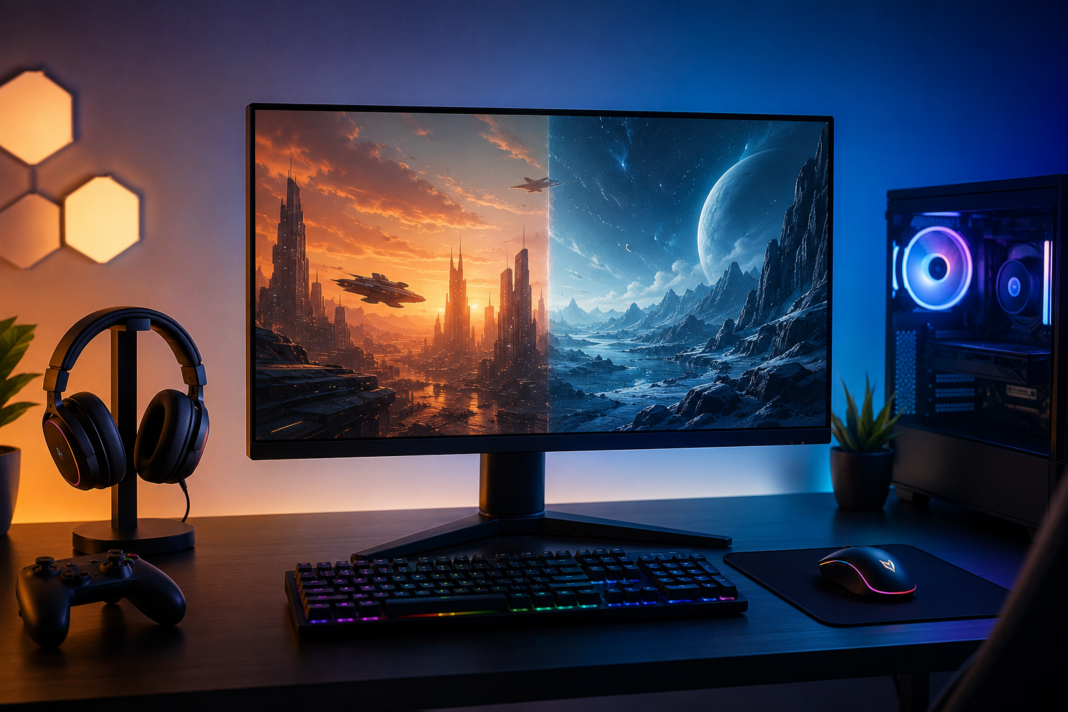
A gaming monitor spec sheet looks impressive right up until you try to compare two panels side by side. One brand lists response time as GtG, another as MPRT, refresh rate gets marketed in odd increments like 165Hz or 280Hz, and HDR badges range from genuinely useful to almost meaningless. This gaming monitor buying guide breaks down what each spec actually does to your gameplay, so you can spend your budget on the things that matter for how you actually play.
Gaming Monitor Buying Guide Step One: Start With Your Use Case
Before comparing panels, the first rule in any gaming monitor buying guide is to figure out what you’re optimizing for. A competitive Valorant or CS2 player benefits far more from a fast 1080p or 1440p panel than a 4K screen. A single-player, story-driven gamer on a modern GPU benefits more from color accuracy, contrast, and resolution than from squeezing out extra frames past 144Hz. Buying the wrong monitor for your genre is the most common and most expensive mistake in this category.
Panel Type: TN, VA, IPS, or OLED
TN (Twisted Nematic) panels are largely phased out at the high end but still show up in budget 240Hz+ monitors. They offer the fastest response times for the price but weak color accuracy and poor viewing angles.
VA (Vertical Alignment) panels deliver the best native contrast ratios of the LCD types, which makes dark scenes look genuinely dark instead of grey. The tradeoff is slower pixel response and occasional black smearing in fast-moving dark content.
IPS (In-Plane Switching) panels remain the most balanced option for most buyers. Strong color accuracy, wide viewing angles, and response times that have closed most of the gap with TN in recent generations. The main weakness is contrast, since IPS blacks look more grey than true black.
OLED panels have moved from premium curiosity to genuinely mainstream gaming displays over the past two years. Instant pixel response, true per-pixel blacks, and exceptional HDR performance make OLED the best picture quality available. Burn-in risk has improved significantly with newer panel generations and built-in protection features, but it hasn’t disappeared, which matters if you leave static HUDs on screen for long sessions.
Refresh Rate: How High Do You Actually Need to Go
Refresh rate determines how many times per second the image updates, measured in Hz. Higher refresh rates reduce motion blur and make fast movement look smoother, but the benefit has diminishing returns.
- 60Hz is the baseline, adequate for slower-paced or narrative games but a real limitation in anything competitive.
- 144Hz is the sweet spot for the vast majority of gamers. The jump from 60Hz to 144Hz is dramatic and easy to feel.
- 165Hz to 180Hz offers a smaller but noticeable improvement over 144Hz, common in mid-range monitors.
- 240Hz and above mainly benefits competitive shooter players who can consistently push high frame rates and want the lowest possible motion blur. The jump from 144Hz to 240Hz is far less noticeable than 60Hz to 144Hz.
Refresh rate is only useful if your GPU can produce enough frames to match it. A 240Hz monitor paired with a GPU that outputs 90fps is not delivering a 240Hz experience.
Resolution and Size: Balancing Sharpness With Frame Rate
- 1080p remains relevant for competitive gaming and budget builds, since it’s the easiest resolution to push high frame rates on.
- 1440p is the current mainstream standard, offering a meaningful sharpness increase over 1080p without demanding flagship-tier GPU power.
- 4K delivers the sharpest image but requires a high-end GPU to maintain smooth frame rates, especially at higher refresh rates. Upscaling technology has made 4K more accessible than it used to be, but it’s still the most demanding tier.
Screen size should scale with resolution and viewing distance. A 24 to 25 inch panel suits 1080p well, 27 inches is the common sweet spot for 1440p, and 32 inches plus tends to pair best with 4K so pixel density stays sharp.
Response Time: GtG vs MPRT
Response time measures how fast a pixel changes color, and it directly affects motion blur and ghosting.
GtG (Gray-to-Gray) measures the time for a pixel to shift between two shades of gray. This is the number most commonly printed on spec sheets, but manufacturers measure it under different conditions, so numbers aren’t always directly comparable across brands.
MPRT (Moving Picture Response Time) measures how long a moving image stays visible on screen and correlates more closely with perceived motion blur. A monitor advertising 1ms MPRT is not equivalent to 1ms GtG, and confusing the two leads to unrealistic expectations.
For fast-paced gaming, look for panels with response times under 5ms GtG, with OLED panels typically well under 1ms.
HDR: Reading Past the Badge
HDR (High Dynamic Range) badges like DisplayHDR 400, 600, and 1000 indicate different tiers of brightness and contrast capability, as defined by VESA’s certification program. DisplayHDR 400 is the entry tier and often doesn’t deliver a meaningfully better HDR experience over SDR content, since it doesn’t require local dimming. DisplayHDR 600 and above starts to deliver genuine HDR benefits, and OLED panels generally exceed these certifications in real contrast performance regardless of their official badge, since true blacks are inherent to the panel technology.
If HDR matters to you, prioritize actual peak brightness and local dimming zone count over the certification tier alone.
Adaptive Sync: G-Sync vs FreeSync
Adaptive sync technology matches your monitor’s refresh rate to your GPU’s frame output in real time, eliminating screen tearing without the input lag penalty of traditional V-Sync.
Nvidia G-Sync monitors, particularly those with the full G-Sync module, offer certified low-latency performance but usually cost more.
AMD FreeSync is royalty-free and widely adopted, with FreeSync Premium and Premium Pro tiers adding low-latency and HDR requirements.
Most modern GPUs from both Nvidia and AMD support both standards on FreeSync-certified monitors, so the practical gap between the two has narrowed considerably. Check compatibility with your specific GPU rather than assuming a strict brand pairing is required.
Ports and Connectivity Worth Checking
Before buying, confirm the monitor has the ports your setup actually needs:
- DisplayPort 1.4 or 2.1 for the highest refresh rates at higher resolutions
- HDMI 2.1 if you’re connecting a current-generation console alongside your PC
- USB-C with power delivery if you want single-cable connectivity to a laptop
- At least one USB hub port if you want a clean desk setup with a single upstream cable
Gaming Monitor Buying Guide: Top Picks by Category (July 2026)
These recommendations are compiled from current benchmark data and professional testing labs, and round out this gaming monitor buying guide with real models rather than generic specs. Prices fluctuate, so confirm current pricing before you buy.
Best budget pick: Lenovo Legion R27fc-30 Under $200, this monitor prioritizes motion clarity over flashy specs, making it a strong entry point for anyone upgrading from a 60Hz panel without spending much.
Best for competitive esports: Asus ROG Strix Ace XG248QSG A 24-inch TN panel pushing a 610Hz refresh rate, built specifically for competitive shooters where raw frame delivery matters more than color depth. Includes ELMB 2 blur reduction for extra motion clarity.
Best 1440p all-rounder: Gigabyte MO27Q28G A 27-inch WOLED panel at 1440p with a 280Hz refresh rate, offering strong HDR and SDR brightness with improved black depth over earlier-generation OLED panels. A solid middle ground between price and performance for most gamers.
Best 4K premium pick: Asus ROG Swift OLED PG27UCDM A 27-inch 4K QD-OLED panel running at 240Hz, currently rated among the best all-around gaming monitors available. Delivers the sharpest image and deepest contrast in this guide, at a premium price point to match.
Gaming Monitor Buying Guide Checklist
- Decide your primary use case: competitive, single-player, or mixed
- Match resolution to your GPU’s real-world performance
- Pick panel type based on whether contrast or motion clarity matters more
- Choose refresh rate based on the genre you play most
- Confirm your GPU supports the adaptive sync standard on the monitor
- Check port compatibility with your existing setup before checkout
Frequently Asked Questions
Is a higher refresh rate always better for gaming?
Not necessarily. Refresh rate benefits are most noticeable up to 144Hz, and only useful beyond that if your GPU can consistently hit those frame rates in the games you play.
Should I choose OLED or IPS for gaming?
OLED offers the best overall picture quality and motion clarity, but IPS remains a safer choice for extended static-content use or tighter budgets, given burn-in risk with OLED.
Do I need 4K for gaming?
Only if you have a GPU capable of driving 4K at your target frame rate. For many gamers, 1440p offers a better balance of visual quality and performance.
What’s more important, response time or refresh rate?
Both affect motion clarity but in different ways. Refresh rate determines how often the image updates, while response time determines how quickly pixels transition, and a mismatch between the two can bottleneck the other.
That covers the core of this gaming monitor buying guide. Looking to round out the rest of your setup? Check our full library of hardware reviews and buying guides for peripherals, storage, and more.
