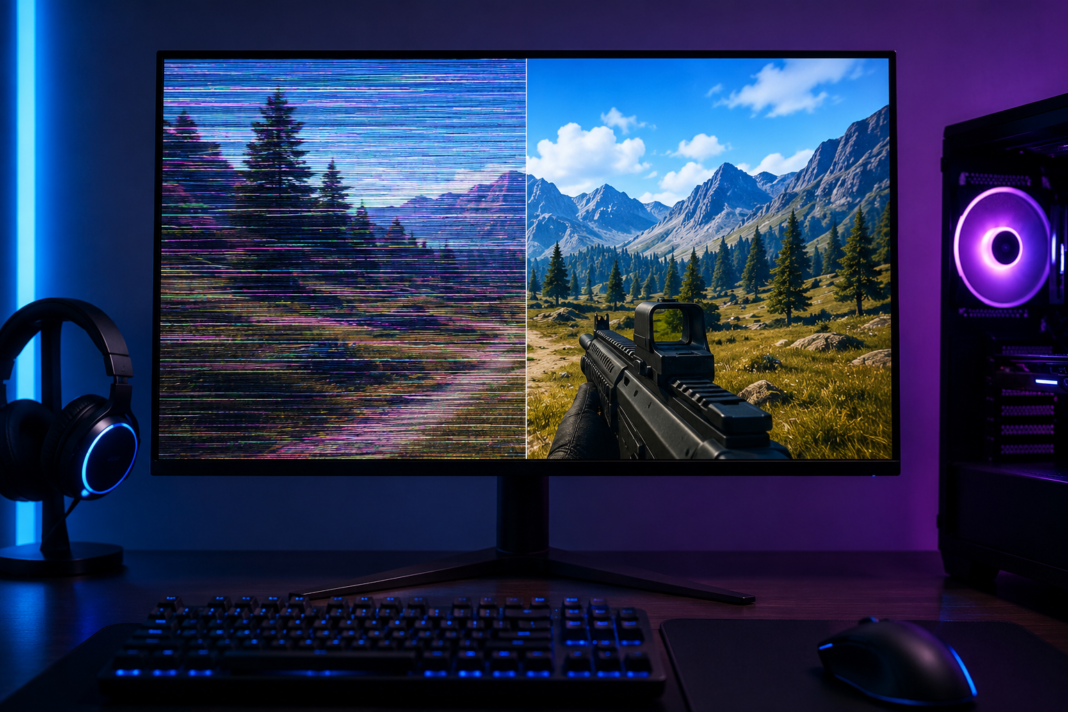
A flickering screen mid-match is one of the most distracting problems a gamer can run into, and it rarely has a single cause. Over dozens of test sessions across multiple monitor panels and GPU generations, the pattern holds: monitor flickering while gaming almost always traces back to one of five things, a refresh rate mismatch, a loose or degraded cable, an adaptive sync conflict, a driver fault, or a power delivery issue. This guide walks through each cause in the order they are most likely to apply, with the exact steps used to confirm and fix them.
What Causes Monitor Flickering While Gaming
Flickering shows up differently depending on the source. A screen that flashes black for a split second usually points to a signal or cable problem. A subtle strobing or brightness pulse during fast motion is more often a refresh rate or adaptive sync conflict. Horizontal tearing, paired with flicker, usually means the GPU driver and the display are not in sync on timing. The list below covers the causes seen most often on gaming setups, roughly ranked by how frequently they turn out to be the culprit.
- Refresh rate mismatch between the monitor, the GPU output, and the game’s in-game frame cap
- G-Sync or FreeSync (adaptive sync) conflicting with V-Sync or a frame rate limiter
- A loose, damaged, or low-quality HDMI or DisplayPort cable
- Outdated, corrupted, or freshly updated GPU drivers
- Power supply voltage fluctuations feeding the monitor or the GPU
- Windows display scaling or refresh rate settings reverting after an update
- A failing monitor backlight or aging panel
Refresh Rate and Adaptive Sync Mismatches Behind Monitor Flickering While Gaming
This is the single most common cause found during testing. Most modern gaming monitors support a range of refresh rates, often 60Hz up to 240Hz or higher, but Windows does not always default to the monitor’s maximum supported rate after a driver update or a cable swap. When the refresh rate set in Windows does not match what the monitor is actually running, the panel can flicker, especially during scene transitions or fast camera movement.
Adaptive sync technologies add a second layer to this. G-Sync and FreeSync adjust the monitor’s refresh rate in real time to match the GPU’s frame output, which eliminates tearing, but if V-Sync is also enabled in the game or in the GPU control panel, the two systems fight for control of the refresh cycle. That conflict is a frequent source of flicker in fast-paced titles.
- Right-click the desktop, open Display settings, and confirm the refresh rate matches the monitor’s rated maximum
- Open the GPU control panel (NVIDIA Control Panel or AMD Software) and confirm G-Sync or FreeSync is enabled at the display level, not just in the game
- Turn off V-Sync in the game’s graphics menu if adaptive sync is already active, since running both at once causes conflicts
- Cap the frame rate a few frames below the monitor’s maximum refresh rate using the GPU control panel’s frame limiter, which keeps adaptive sync stable
Cable and Connection Issues
A worn or loose cable is an easy thing to overlook because the connection often still works, just imperfectly. HDMI and DisplayPort cables degrade with repeated bending near the connector, and a cable rated for a lower bandwidth than the monitor’s resolution and refresh rate combination will drop frames intermittently, which reads as flicker. This is especially common after moving a desk or PC, since even a small nudge to the port can loosen the seat of the cable.
- Reseat both ends of the cable firmly and check for bent pins on DisplayPort connectors
- Swap in a different cable of the same type to rule out wear, even if the current one looks fine
- Confirm the cable is rated for the monitor’s full resolution and refresh rate, since a 4K 144Hz panel needs DisplayPort 1.4 or HDMI 2.1, not an older spec
- Try a different port on the GPU if one is available, since a single damaged port can cause flicker on only one connection
If cable wear turns out to be the culprit, our monitor and peripheral reviews round up panels and accessories that have held up well in long-term testing.
GPU Driver Problems
Flickering that starts right after a driver update is a strong signal the driver itself is the issue, and it happens often enough with both NVIDIA and AMD releases that a clean reinstall is worth doing before anything else. A partial or corrupted driver install can leave old display timing files in place alongside new ones, which creates exactly the kind of conflict that shows up as flicker during gameplay.
- Download Display Driver Uninstaller (DDU) and boot into Safe Mode to fully remove the current GPU driver
- Download the latest stable driver directly from NVIDIA or AMD’s website rather than relying on Windows Update
- Install the fresh driver and restart before launching any games
- If the flicker started after a specific driver version, consider rolling back one version until the vendor issues a fix
Power Supply and Voltage Issues
This cause gets missed often because it does not point to the monitor or GPU directly. A power supply that is undersized for the GPU, or a wall circuit with unstable voltage, can cause brief power dips under load, which is exactly when a game is pushing the highest frame rates and the flicker becomes visible. This is more likely if the flicker appears specifically during graphically demanding scenes rather than at idle.
- Check that the PSU wattage has enough headroom above the GPU’s rated power draw, generally 150 to 200 watts of margin for modern high-end cards
- Plug the monitor and PC into a surge protector or UPS to rule out wall voltage fluctuation
- Listen for coil whine or watch for other symptoms of PSU strain during the same moments flicker occurs
Windows Display Settings
Windows updates occasionally reset display settings, including HDR toggles and refresh rate selections, without any notification. HDR in particular can cause flicker on monitors with inconsistent HDR implementations, since the panel is switching color and brightness processing modes on the fly.
- Toggle HDR off and test if the flicker stops, since inconsistent HDR handling is a known flicker source on many panels
- Check Windows Update history for a recent update that coincides with when the flicker started
- Reapply the correct refresh rate and resolution after any major Windows update
When to Replace Your Monitor
If every software and connection fix has been tried and the flicker persists, especially if it appears even on the Windows desktop with no game running, the monitor’s backlight or panel driver board may be failing. This is more common in monitors that are three or more years old or that have seen heavy daily use. A quick way to confirm is testing the same monitor on a different PC; if the flicker follows the monitor rather than the system, it points to hardware failure inside the display itself.
Frequently Asked Questions
Why does my monitor flicker only during gaming and not on the desktop?
This points toward a refresh rate or adaptive sync conflict rather than a hardware fault, since the issue only appears under the higher frame rates games produce.
Does a new GPU driver cause monitor flickering?
Yes, this happens often enough that a clean driver reinstall using DDU is one of the first fixes worth trying.
Can a bad cable cause intermittent flicker instead of a total signal loss?
Yes, a cable that is worn or under-rated for the resolution and refresh rate combination will drop frames intermittently rather than failing completely.
Should G-Sync or FreeSync be on or off if the monitor is flickering?
Keep it on but make sure V-Sync is off at the same time, since running both together is a common cause of flicker.
Final Thoughts
Monitor flickering while gaming is almost always fixable without replacing hardware. Working through refresh rate settings, adaptive sync configuration, cable condition, and driver health in that order resolves the vast majority of cases. If the flicker survives all of that and follows the monitor to a different PC, that is the point to start looking at replacement or warranty options.
